
Template details
WordPress GitHub Sync
A WordPress plugin to sync content with a GitHub repository (or Jekyll site)
About this template
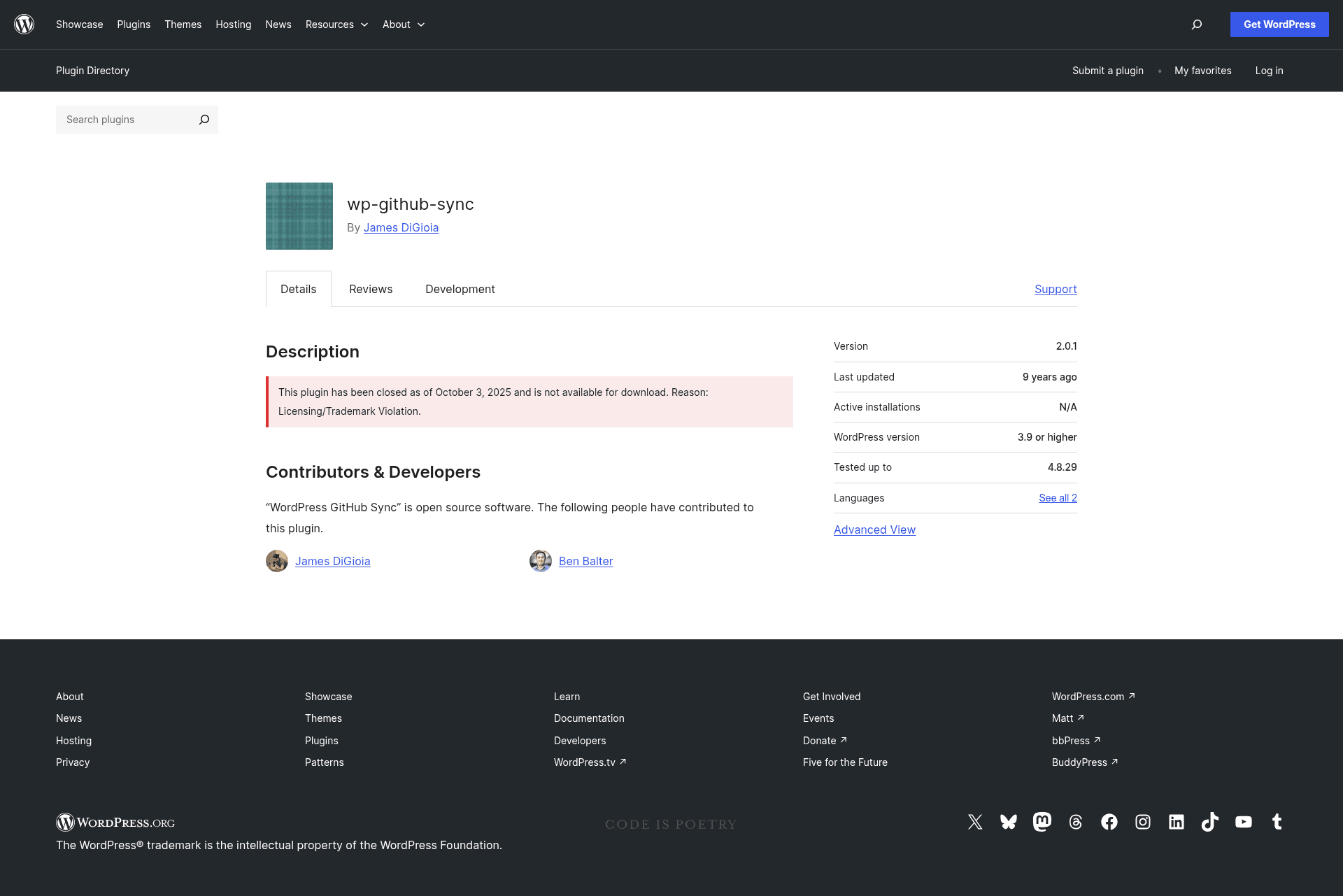
WordPress GitHub Sync is an open-source WordPress plugin (GPLv2) that synchronizes posts and pages between a WordPress site and a GitHub repository or Jekyll site, enabling version-controlled, pull-request-driven publishing. It was built by contributors JamesDiGioia and benbalter, requires WordPress 3.9 or newer, was tested through WordPress 4.8, and its stable release is version 2.0.1.
What is WordPress GitHub Sync?
WordPress GitHub Sync is a WordPress plugin that provides two-way content sync between a WordPress installation and a GitHub repository. It takes WordPress posts and pages as input, converts each one to a .md file, and commits it to GitHub; it also listens for GitHub push events and imports changed files back into WordPress as posts. The plugin is written in PHP, installs like a standard WordPress plugin from the plugin directory, and can also be installed from source with git clone and composer install.
Key Features
The plugin bundles everything needed to mirror a WordPress site in GitHub: export, import, authentication, and link helpers all ship in a single PHP plugin.
- Two-way hook-based sync — A per-post sync fires on WordPress's
save_posthook to push content to GitHub, while GitHub'spushwebhook triggers an outbound API call that syncs all changed files back. - Version-controlled publishing — Every saved post becomes a commit in GitHub, exposing who made what change when to readers.
- Pull request workflow — Readers can submit proposed improvements to WordPress-served content through GitHub's pull request model.
- Markdown export — All posts are exported as
.mdfiles for display on GitHub, while content is imported and exported as its original HTML; installing WP-Markdown, Jetpack's Markdown module, or JP Markdown enables true Markdown writing and conversion. - GitHub post import — Posts committed to the
masterbranch with YAML frontmatter (includingpost_title,layout, andpublishedfields) are imported into WordPress, with an additional commit added afterward reflecting the database state. - Custom post types and statuses — The
wpghs_whitelisted_post_typesandwpghs_whitelisted_post_statusesfilters let you export drafts and custom post types; by default only published posts and pages sync. - GitHub link helpers — Four theme functions (
get_the_github_view_url,get_the_github_view_link,get_the_github_edit_url,get_the_github_edit_link) plus the[wpghs]shortcode (withtarget,type, andtextattributes) add "View on GitHub" or "Edit on GitHub" links to posts. - WP-CLI support — A
wp wpghs export allcommand exports content from the command line, taking the user ID you'd like to commit as its argument.
Who is it for?
This plugin suits anyone who wants Git-based workflows attached to a WordPress content site.
- Content publishers who want to version their WordPress content in GitHub and expose a public change history to readers.
- Non-technical writers who want to draft and edit a Jekyll site using WordPress's editing interface instead of a code editor.
- Editorial teams that want to collaboratively write and edit posts using GitHub pull requests, issues, and comments.
- Developers and site operators who want to stage and preview content in a repository before deploying it to a production server, or sync content between two WordPress installations.
What can you do with it?
Beyond the core sync loop, the plugin supports several concrete publishing workflows.
- Publish a Jekyll site from WordPress: Non-technical writers compose posts in WordPress and the plugin exports them as
.mdfiles straight into the Jekyll repository. - Accept reader contributions: Allow readers to fork the content repository and submit pull requests that propose improvements to published posts.
- Sync between two WordPress sites: Use a GitHub repository as the intermediary to sync content between two separate WordPress installations.
- Add GitHub links to posts: Use the provided shortcode or theme functions to display "View on GitHub" or "Edit on GitHub" links on single posts and pages.
How does it work?
Setup involves four steps: create a personal OAuth token with the public_repo scope; configure the GitHub host, repository, secret, and token on the plugin's settings page; create a webhook in the repository using the provided callback URL and secret with application/json as the content type; and run an initial export via the "Export to GitHub" button or wp wpghs export all from the command line. The repository must have an initial commit or the export will fail. After setup, saves in WordPress push content to GitHub and GitHub pushes import content back automatically.
FAQ
Is WordPress GitHub Sync free?
Yes. The plugin is open source and released under the GPLv2 license. You can install it from the WordPress plugin directory or clone the source from GitHub and run composer install before activating it.
Does WordPress GitHub Sync support Markdown?
All posts are exported as .md files for better display on GitHub, but content itself is imported and exported as HTML. To write, import, and export in Markdown, install and enable WP-Markdown, or activate the Markdown module from Jetpack or the standalone JP Markdown plugin.
Which GitHub branch does the plugin import from?
WordPress GitHub Sync only imports posts from the master branch. Changes committed to any other branch are ignored, so all imported posts must be merged to master before they appear in WordPress.
Can I sync draft posts or custom post types?
By default, only published posts and pages are exported. To include additional post types or draft statuses, you must add filters using the wpghs_whitelisted_post_types and wpghs_whitelisted_post_statuses hooks, which are documented in the plugin's wiki.
What happens if GitHub cannot find a post author?
If the plugin cannot find the author for a given import, it falls back to the default user set on the settings page. The documentation recommends setting this user before importing from GitHub, otherwise no user will be set for the author and unknown-author revisions will occur.