
Template details
Azure Cosmos DB Starter – Todo App
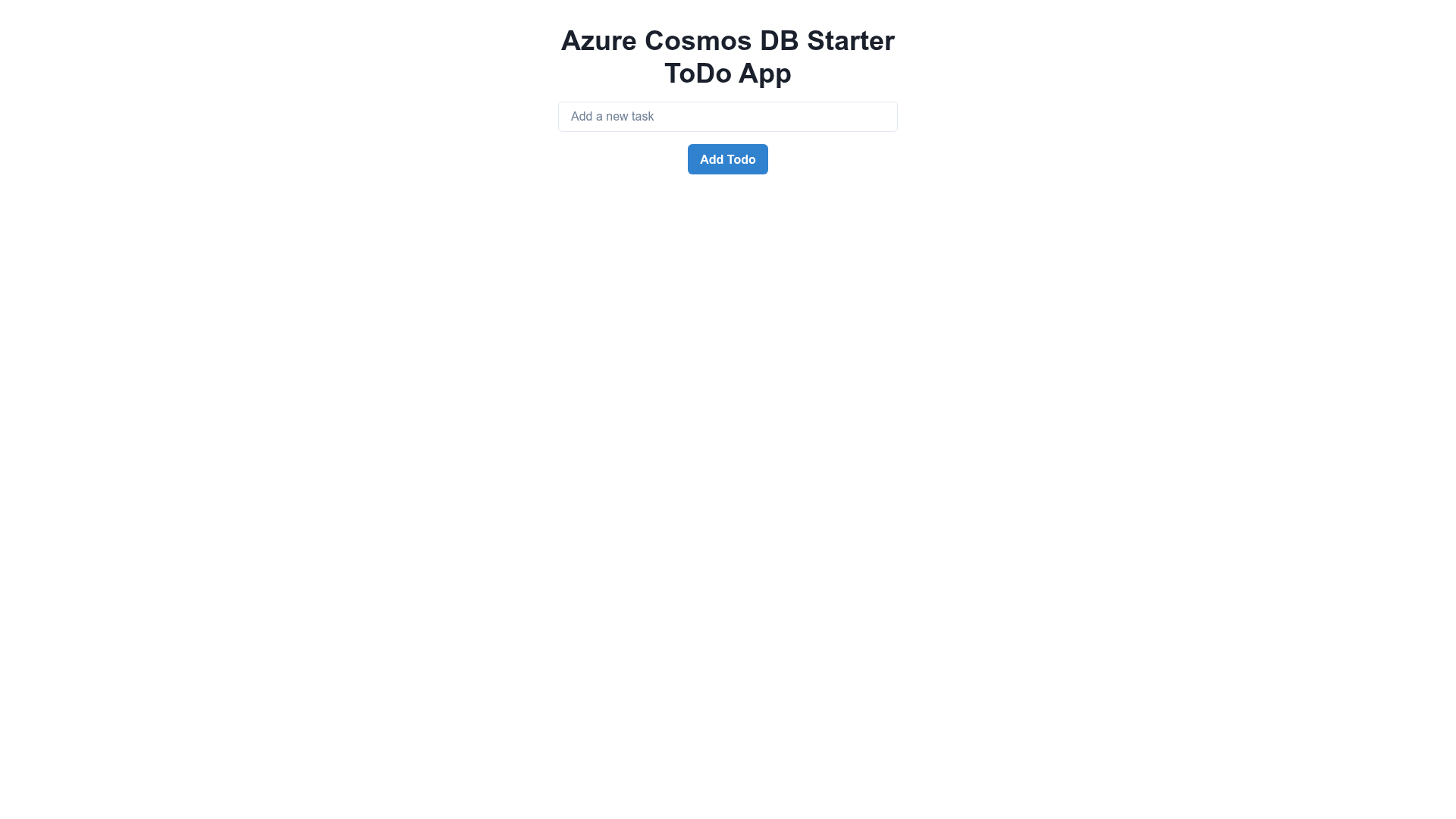
Next.js Todo app starter that connects to Azure Cosmos DB and deploys on Vercel via the official Vercel + Azure Cosmos DB integration.
About this template
Azure Cosmos DB Starter – Todo App is a Boilerplate that scaffolds a CRUD todo application on the Next.js framework with Azure Cosmos DB as its backend, ready to deploy on Vercel. A live demo runs at https://cosmosdb-vercel-starter.vercel.app/, and the project pairs with the official Vercel + Azure Cosmos DB integration at https://vercel.com/integrations/azurecosmosdb.
What is Azure Cosmos DB Starter – Todo App?
Azure Cosmos DB Starter – Todo App is a GitHub repository boilerplate for a simple todo list web application. It takes a Next.js React frontend, wires it to an Azure Cosmos DB account, database, and container for storage, and produces a deployed app on Vercel with create, read, update, and delete operations on todos. The template is the sample linked from Microsoft's aka.ms/trycosmosdbvercel shortcut and is designed around the Vercel + Azure Cosmos DB integration. Its runtime inputs are three environment variables — COSMOSDB_CONNECTION_STRING, COSMOSDB_DATABASE_NAME, and COSMOSDB_CONTAINER_NAME — defined in a .env file created by renaming sample.env.
Key Features
- Next.js framework — The app is built on Next.js, Vercel's React framework, giving a component-based frontend that runs both locally and on Vercel.
- Azure Cosmos DB storage — Todos persist in an Azure Cosmos DB container; the template requires the container partition key to be '/id'.
- Vercel + Azure Cosmos DB integration — The project is set up for the official integration at https://vercel.com/integrations/azurecosmosdb, which connects a Vercel deployment to a Cosmos DB backend.
- Three-variable configuration — Setup uses a sample.env template with COSMOSDB_CONNECTION_STRING, COSMOSDB_DATABASE_NAME, and COSMOSDB_CONTAINER_NAME; the README explains how to copy the Primary connection string from the Azure portal.
- Simple install and run — Dependencies install with
npm installfrom the root folder, and the dev server starts withnpm run dev. - Live demo — A running version of the app is available at https://cosmosdb-vercel-starter.vercel.app/ so you can see the finished Todo UI before cloning.
Who is it for?
Full-stack developers — clone the repo to see a minimal CRUD pattern that connects a Next.js frontend to Azure Cosmos DB through environment variables. Azure learners — use the template to practice provisioning a Cosmos DB account, database, and container with a '/id' partition key and wiring them into a real web app. Prototype builders — deploy the Todo app to Vercel via the Vercel + Azure Cosmos DB integration for an instant demo of the integration.
What can you do with it?
Prototype a Todo CRUD app — launch the app locally or on Vercel and perform create, read, update, and delete operations on todos stored in Cosmos DB. Learn the Vercel + Azure Cosmos DB integration — examine how the official integration and the aka.ms/trycosmosdbvercel sample connect a Cosmos DB account to a Vercel deployment. Set up a backend reference — follow the README to create a Cosmos DB container with the correct partition key and map its credentials into .env.
How does it work?
The setup is a short, four-step flow documented in the README. First, provision an Azure Cosmos DB account, database, and container whose partition key is '/id'. Second, run npm install from the root folder. Third, rename sample.env to .env and set the three variables — the connection string comes from the Cosmos DB key blade's Primary connection string. Fourth, run npm run dev to start locally, or deploy to Vercel using the integration at https://vercel.com/integrations/azurecosmosdb.
FAQ
Is this template free?
The template code is hosted in a public GitHub repository and the live demo at https://cosmosdb-vercel-starter.vercel.app/ is open to try. The README lists no pricing for the starter itself; any cost comes from the Azure Cosmos DB account and Vercel hosting you choose to use.
What Azure resources do I need?
You need an Azure Cosmos DB account, a database, and a container. The container must use '/id' as its partition key, and both the database and container names are passed to the app via COSMOSDB_DATABASE_NAME and COSMOSDB_CONTAINER_NAME in the .env file.
Where do I find the connection string?
On the Azure Cosmos DB account page, open the key blade and select the Primary connection string, then copy its value into the COSMOSDB_CONNECTION_STRING environment variable. The README points to the learn.microsoft.com partitioning overview for more context on the '/id' partition key.
How do I run the project?
Install dependencies with npm install, rename sample.env to .env and fill in the three variables, then start with npm run dev. To deploy, use the Vercel + Azure Cosmos DB integration listed at https://vercel.com/integrations/azurecosmosdb.
What does the Vercel + Azure Cosmos DB integration do?
It is the official Vercel integration for Azure Cosmos DB, and this template is the example built around it. The integration connects a Vercel project to a Cosmos DB backend so the Todo app can be deployed with data stored in your Cosmos DB container.