
Template details
Gatsby Starter Woo
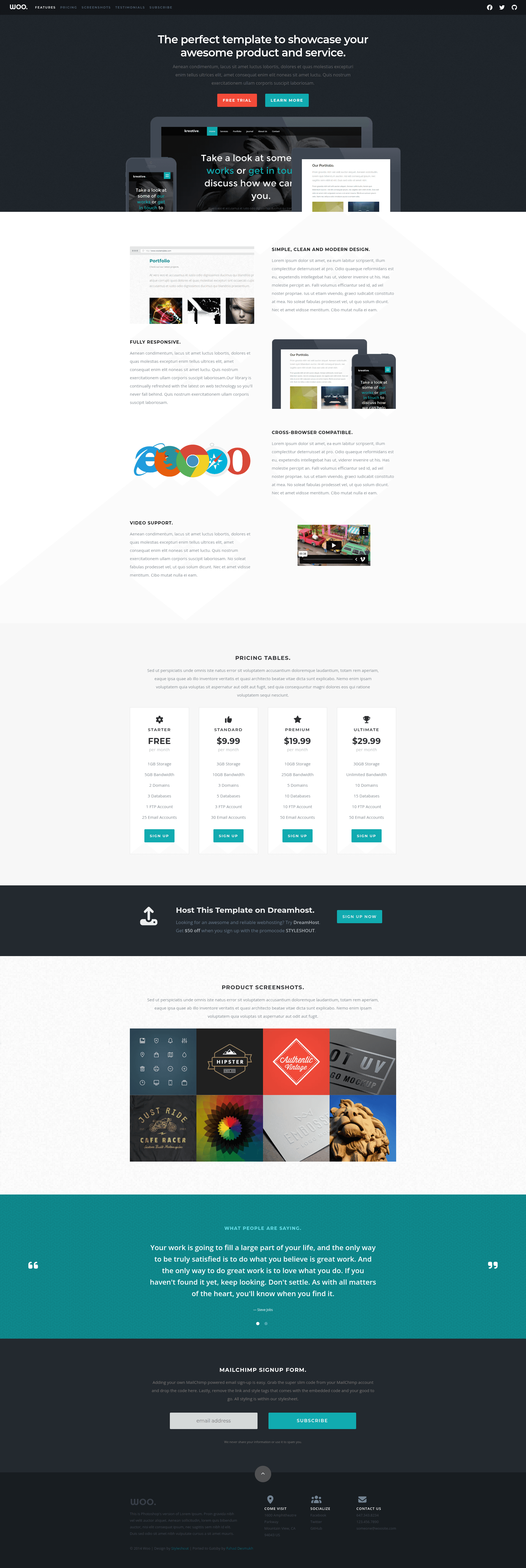
A clean GatsbyJS starter for responsive product/service landing pages, ported from StyleShout's Woo template.
About this template
Gatsby Starter Woo is a GatsbyJS starter that ports StyleShout's free Woo HTML5/CSS3 landing page template into a configurable, content-driven static site.
What is Gatsby Starter Woo?
Gatsby Starter Woo is a starter project for the Gatsby static site generator, created by Fahad Desmukh. It takes the design of StyleShout's Woo template — originally a free HTML5/CSS3 theme — and rebuilds it with React and GraphQL. The starter accepts site configuration from gatsby-config.js and content from per-section YAML files in the content folder, and it produces a static, responsive one-page landing site. A live demo is available at https://gatsby-starter-woo.netlify.app/.
Key Features
- Configurable landing page sections — The page can display seven sections: hero, features, pricing, call-to-action, screenshots, testimonials, and subscribe. Their order and inclusion are set through a
sectionsarray in thesiteMetadataobject. - YAML-based content editing — Each landing page section is edited as a separate YAML file in the
content/directory, so non-developers can update text without touching components. - Custom navigation menu — The menu items and their anchor paths are defined in the
menuItemsarray, letting you point the nav at any section. - Social media integration — Social links (Facebook, Twitter, GitHub are preconfigured) are displayed using FontAwesome brand icons, chosen by name from the FontAwesome free cheat sheet.
- Configurable footer and contacts — The footer supports a custom logo, footer text, an address block (three lines), and clickable contact entries with tel: and mailto: URLs.
- Additional pages via JSX — Adding a new
.jsfile tosrc/pages/automatically creates a new page; the starter includes a style guide page at/demo/to show the available components. - GPLv3 licensing — The project is licensed under GPLv3, matching open-source reuse expectations.
Who is it for?
- Gatsby developers who want a ready-made landing page starter and need a clean base to customize into a product or service site.
- Startups and small businesses that need a one-page marketing site with pricing, testimonials, and a subscribe form, without building it from scratch.
- Developers evaluating Gatsby starters who want to see how configuration and YAML content can drive a site, with a working demo and style guide to inspect.
What can you do with Gatsby Starter Woo?
- Launch a product landing page: Set the hero, features, and pricing sections to present a new product, then add a call-to-action and subscribe section to capture leads.
- Create a startup website: Use the testimonials and screenshots sections to show social proof and product visuals, with a clean footer showing contact details.
- Build a simple portfolio or service page: Replace the demo content in the YAML files with your own text and images, and configure the menu to match your site's structure.
How does Gatsby Starter Woo work?
To get started, install Gatsby, then run gatsby new my-project https://github.com/desmukh/gatsby-starter-woo from the command line. Inside the new project, run gatsby develop to start a local server at http://localhost:8000, which also exposes a GraphiQL interface at http://localhost:8000/___graphql for querying your data. Edit the YAML files in content/ (or the siteMetadata in gatsby-config.js) and the browser will hot-reload with your changes.
FAQ
Is Gatsby Starter Woo free?
Yes. The starter is open source and released under the GPLv3 license. The original Woo design by StyleShout is also offered as a free template on their site.
How do I change the sections shown on the landing page?
Edit the siteMetadata.sections array inside gatsby-config.js. You can reorder or remove any of the seven predefined section names — hero, features, pricing, call-to-action, screenshots, testimonials, subscribe — and Gatsby will render only those sections.
How do I add a new page?
Create a new .js file in the src/pages/ directory using JSX. Gatsby will automatically generate a route based on the filename, so a file like about.js becomes /about/. The starter provides a style guide at /demo/ to show available components.
Where are images stored?
Put images in the static/ folder at the project root. Paths referenced in the configuration or content files, such as the logo or favicon paths, are relative to this static folder.
What is the demo URL?
The live demo is hosted at https://gatsby-starter-woo.netlify.app/, and a component style guide is available at https://gatsby-starter-woo.netlify.app/demo/.