Template details
NexT for Typora
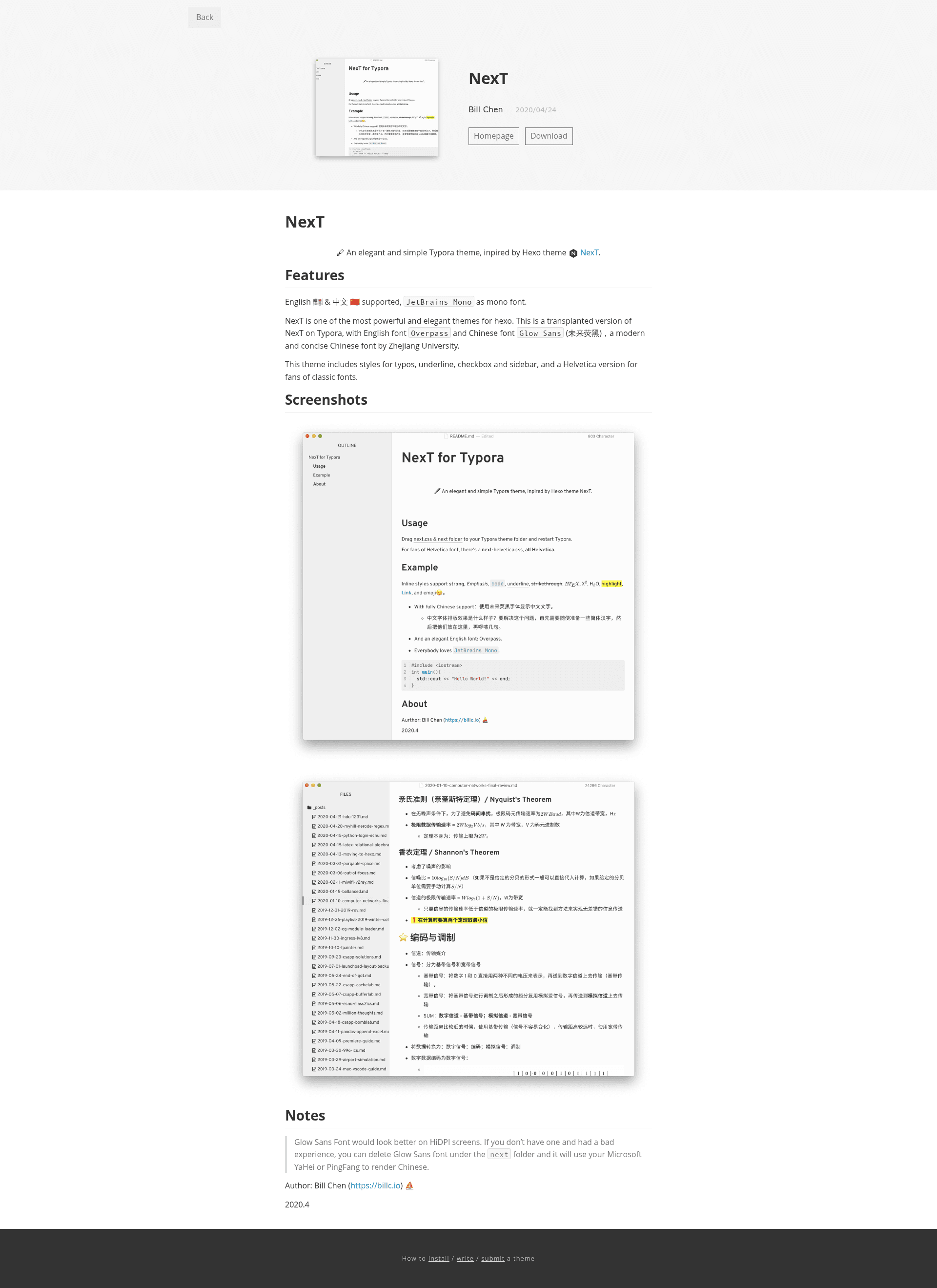
An elegant Typora theme inspired by the Hexo NexT theme, with light/dark variants and bilingual English–Chinese typography.
About this template
NexT for Typora is a free CSS theme that ports the elegant, minimalist design of the Hexo NexT theme to the Typora markdown editor, offering light and dark variants plus a Helvetica alternative.
What is NexT for Typora?
NexT for Typora is a visual theme for Typora, a cross-platform markdown editor. It takes the standard Typora interface and restyles it with the design language of the Hexo NexT theme. The theme is distributed as four CSS files and a bundled next folder containing fonts; you install it by copying the files into Typora's theme directory and restarting the app. It was created by Bill Chen and published on GitHub under the repository name typora-theme-next.
Key Features
- Light and dark themes — Four CSS files cover light and dark modes, each with an optional Helvetica variant for fans of classic fonts.
- Bilingual typography — English text uses Overpass; Chinese text uses Glow Sans (未来荧黑), a modern and concise font from Zhejiang University.
- JetBrains Mono for code — Code blocks render in JetBrains Mono; ligatures are disabled by default but can be enabled by commenting out
font-variant-ligatures: none;in the CSS. - Styled interface elements — Includes dedicated styles for emphasis, underline, checkboxes, and the sidebar.
- Cross-platform tuning — The theme is tuned for both macOS and Windows.
- Export font-size control — Editing the
export-font-sizevariable in the CSS changes the font size of exported PDF or DOCX files.
Who is it for?
Typora users who want the NexT look can apply the same clean, content-focused aesthetic to their local markdown writing. Bilingual writers who mix English and Chinese benefit from the Overpass and Glow Sans pairing. Writers who prefer a more constrained, academic style can use the Helvetica variant, which has slightly tightened line height.
What can you do with NexT for Typora?
- Bloggers — Draft and preview markdown posts in a style visually consistent with a NexT-powered Hexo site, making the move from local notes to publishing smoother.
- Students and researchers — Write documents with LaTeX math and code snippets, then export to PDF or DOCX while controlling the base font size.
- Developers — Keep technical notes in a code-friendly environment with JetBrains Mono and the option to turn on ligatures.
How does NexT for Typora work?
Installation is manual: download the theme, drag whichever of the four CSS files you prefer plus the next folder into Typora's theme folder, and restart Typora. To adjust the exported font size, edit the export-font-size variable. To enable code ligatures, find font-variant-ligatures: none; and comment out that line.
Pricing
The theme is free to download from its GitHub repository.
FAQ
How do I install NexT for Typora?
Download the theme and drag the CSS file you want (light, dark, or Helvetica version) along with the next folder into Typora's theme folder, then restart Typora. The theme appears in Typora's theme selection menu.
Does NexT for Typora have a dark mode?
Yes. The theme ships with both light and dark CSS files, and each also has a Helvetica variant. You can switch by selecting the corresponding theme in Typora.
What fonts does NexT for Typora use?
It uses Overpass for English, Glow Sans (未来荧黑) for Chinese, and JetBrains Mono for code. If Glow Sans looks bad on a non-HiDPI screen, delete the Glow Sans font from the next folder, and Typora will fall back to Microsoft YaHei or PingFang.
How do I enable code ligatures in NexT for Typora?
Code ligatures are disabled by default. To turn them on, open the CSS file you're using, find font-variant-ligatures: none;, and comment out or remove that line, then save and restart Typora.
Can I change the font size of exported PDF or DOCX files?
Yes. Edit the export-font-size variable in the CSS file. This overrides the base font size used when Typora exports documents to PDF or DOCX format.