
Template details
Windows 11 Web
Windows 11 clone made with Nextjs & Chakra UI
About this template
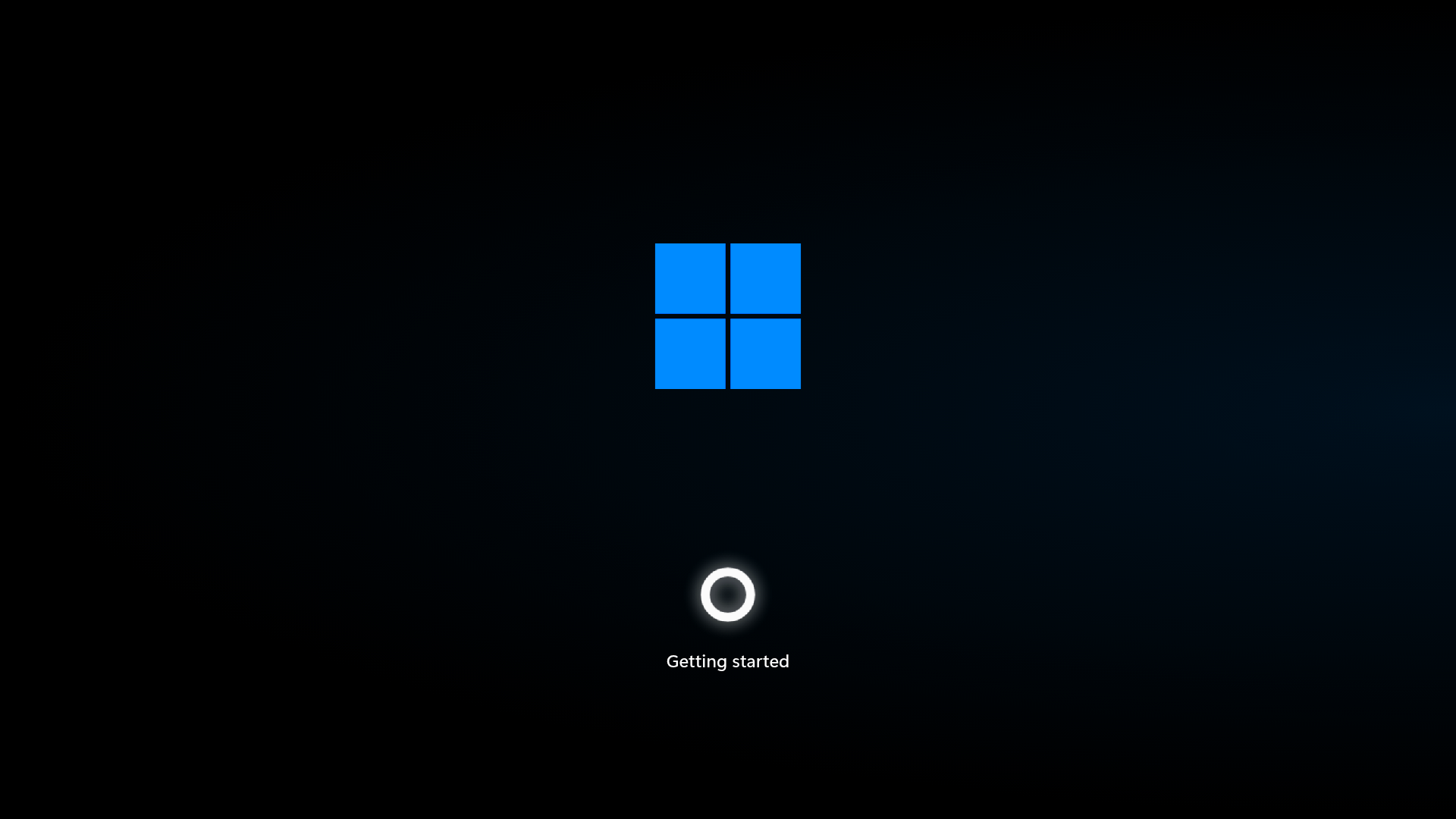
Windows 11 Web is an open-source web application that recreates the Windows 11 desktop interface in the browser, built with Next.js and Chakra UI.
What is Windows 11 Web?
Windows 11 Web is a clone of the Windows 11 operating system viewable in any modern web browser. It is built with Next.js, Chakra UI, and React TypeScript, and was bootstrapped with create-next-app. The project is maintained by Eduardo Picolo and hosted publicly on GitHub. The application renders a responsive user interface that closely resembles the look and feel of Windows 11, and it is deployed live at https://windows-web.vercel.app.
Key Features
- Next.js framework — Built on Next.js 13 (per repository topics) and bootstrapped with create-next-app, giving you a production-ready React setup with server-side rendering.
- Chakra UI styling — The entire UI is composed with the Chakra UI component library, which provides modular, accessible components and themeable styling.
- TypeScript — Written in React TypeScript, offering static type checking and better code maintainability.
- Cypress testing — Cypress is configured for end-to-end testing of the interface.
- GitHub Actions CI — A CI workflow in the repository runs automated checks via GitHub Actions.
- Vercel deployment — The demo is deployed to Vercel, and the project includes a Vercel badge in its README.
- Turborepo monorepo — The repository uses Turborepo for build orchestration and caching.
- Code quality tools — ESLint for linting and Prettier for formatting are configured.
Who is it for?
- Web developers — who want to study how a complex, stateful front-end like an operating system shell is structured in React and Next.js.
- Front-end learners — who want to see real-world usage of Chakra UI components and TypeScript in a large project.
- Windows enthusiasts — who want a browser-based Windows 11 look-alike to demo or extend with their own apps.
What can you do with Windows 11 Web?
- Developers: clone the repo, run npm install, and start the dev server to explore and modify the code in an environment that uses modern React practices.
- Designers: use the live site as a reference for how Windows 11 layout, spacing, and window behavior translate to web interactions.
- Educators: use the project as a teaching example of a Next.js app that includes testing, linting, formatting, and continuous integration.
How does Windows 11 Web work?
The project is a standard Next.js application. To run it locally, clone the repository, install dependencies with npm install, yarn install, or pnpm install, and then start the development server with npm run dev. The app is served at http://localhost:3000. No separate backend is required.
Pros and cons
- Pros: Runs on any device with a browser; open source; built on a modern stack; includes CI and testing.
- Cons: It is a UI clone for educational purposes, not a real operating system, and it is not affiliated with Microsoft.
Alternatives
win11React — another open-source Windows 11 clone built with React that offers a similar desktop experience in the browser.
FAQ
Is Windows 11 Web free?
Yes — the source code is public on GitHub and the live demo is accessible without charge. You can clone the repository and run it locally.
What technologies power Windows 11 Web?
It uses Next.js (version 13) with React and TypeScript. The UI is built with Chakra UI. Cypress is used for testing, and GitHub Actions provides continuous integration. The project also uses Turborepo, ESLint, and Prettier.
How do I run Windows 11 Web locally?
Clone the repository, then run npm install, yarn install, or pnpm install. Start the development server with npm run dev, and open http://localhost:3000 in your browser.
Is Windows 11 Web affiliated with Microsoft?
No. The project is a clone made for educational and demonstration purposes only, and it is not affiliated with or endorsed by Microsoft.
Where can I test Windows 11 Web?
A live deployment is available at https://windows-web.vercel.app.