
Template details
LapisCV
📄 Easily create your resume with Markdown on VSCode / Typora / Obsidian
About this template
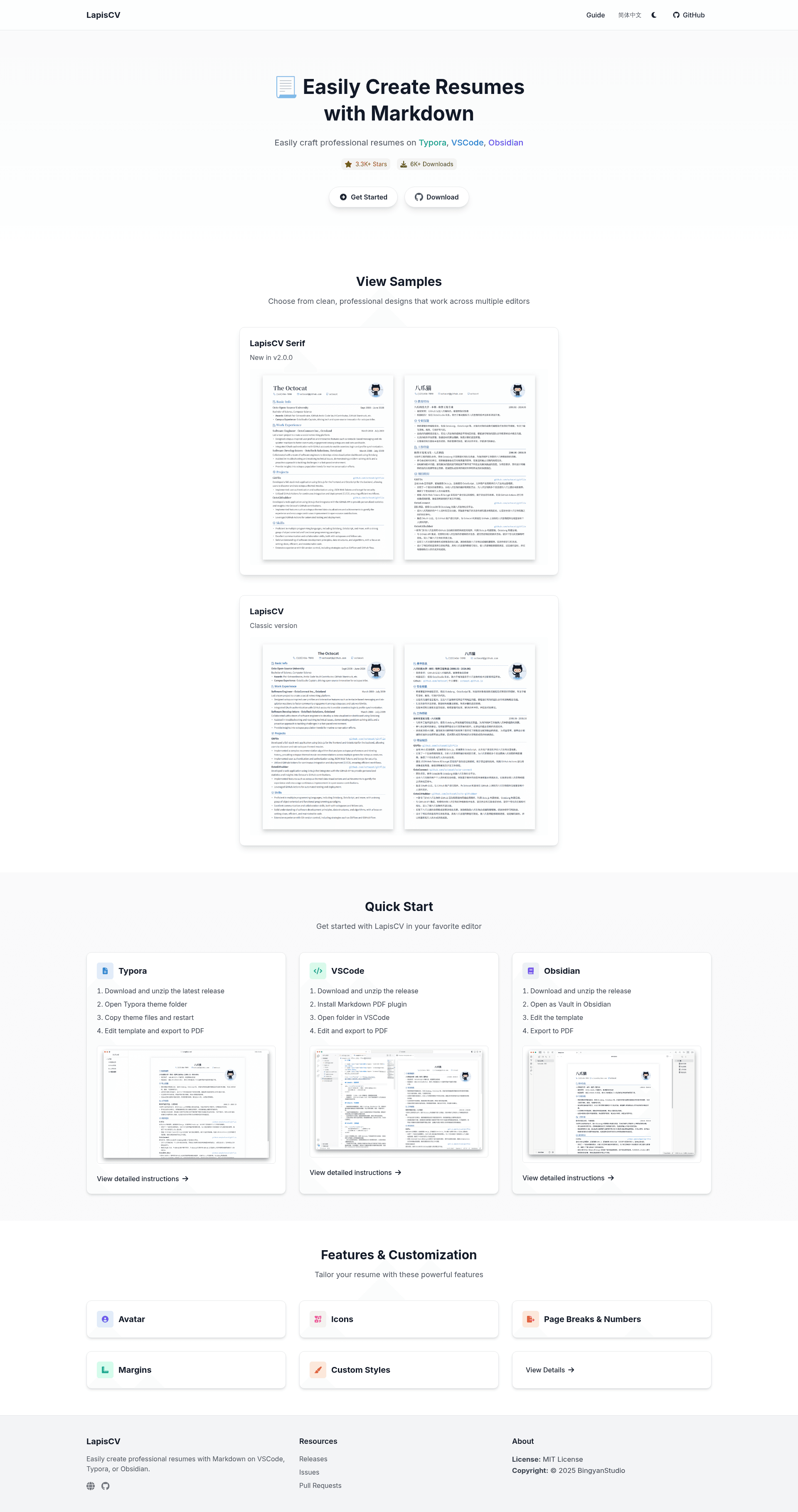
LapisCV is a free, open-source Markdown resume template that turns simple Markdown files into print-ready PDFs using VSCode, Typora, or Obsidian, created by BingyanStudio and distributed through GitHub releases.
What is LapisCV?
LapisCV is a Markdown-based resume template designed for local editing in three applications: VSCode, Typora, and Obsidian. You write your resume content in Markdown—sections like Experience, Education, and Projects—and the bundled CSS renders it into an A4 PDF with a consistent layout. The project lives on GitHub under the MIT License, has earned over 4,800 stars, and ships as a downloadable release archive. Version 2.0.0 introduced a second theme called LapisCV Serif.
Key Features
- Multi-editor support — The same template works in VSCode via the Markdown PDF extension, in Typora as a selectable theme, and in Obsidian as a vault with CSS snippets.
- Two built-in themes —
lapis-cv.cssandlapis-cv-serif.cssgive you a standard and a serif look, switchable in each editor's theme menu. - Avatar support — Add a photo by replacing the
srcin an inline HTML<img>tag, or delete the line to omit an avatar. - Icon library — The template includes a table of escaped Unicode icon codes (like
) so you can add decorative icons without image files. - Customizable via CSS variables — Variables such as
--text-size,--line-height,--avatar-width,--color-accent, and--file-marginslet you tune typography, spacing, and colors. - Page breaks and page numbers — Insert
---to force a page break; page numbers are added through Typora's footer settings, VSCode's Markdown PDF footerTemplate, or Obsidian plugins. - Editor-specific PDF export — Typora exports through File > Export > PDF, VSCode via right-click > Markdown PDF, and Obsidian through its built-in PDF export, with recommended margins of 13mm top/bottom and 15mm left/right.
- Buildable from source — Clone the repository and run
maketo produce the styles in abuilddirectory.
Who is it for?
- Developers and IT professionals — They can keep their resume in a Git repo, write in their usual VSCode editor, and export PDFs without leaving the IDE.
- Obsidian and Typora users — Anyone already managing notes in these tools can add resume writing to the same workflow and apply the template's CSS themes.
- Open-source enthusiasts — Because the project is MIT-licensed and has a
makebuild, contributors can fork it, customize styles, and submit pull requests to BingyanStudio.
What can you do with LapisCV?
- Create a resume from Markdown: Write your content in the provided template file, preview it live in the editor, and export a styled A4 PDF with one or two clicks.
- Maintain multiple versions: Keep the Markdown file under version control, so you can branch or tag different resume variants for different job applications.
- Rebrand the design: Adjust CSS variables to change fonts, accent color, avatar size, and margins to fit your personal identity or a specific application format.
How does LapisCV work?
Installation differs by editor. For Typora, download the release, copy lapis-cv.css, lapis-cv-serif.css, and the lapis-cv directory into the theme folder, restart, and select the theme. For VSCode, unzip, install Markdown PDF, open the template, and export from the right-click menu. For Obsidian, unzip and open the lapis-cv-obsidian folder as a vault, then enable the CSS snippets. All paths end with editing Markdown and exporting PDF.
Pricing
LapisCV is free to download and use. Its MIT License imposes no license fees, no subscriptions, and no account creation; you fetch the release archive from GitHub and run it locally.
FAQ
Is LapisCV free?
Yes. The project is MIT-licensed, so the template and its source are free to use, modify, and distribute for any purpose.
Does LapisCV work in Obsidian?
Yes. Unzip the release, open the lapis-cv-obsidian directory as a vault, then enable the included CSS snippets under Appearance. Obsidian doesn't support page numbers natively, so you'd install a plugin for that.
How do I add a photo in LapisCV?
Edit the inline HTML <img> tag's src to point to your image file, or delete the whole line if you don't want an avatar. On Obsidian, local images in HTML format aren't recognized, so it's recommended to use an image link instead.
What export settings should I use?
Set the page to A4 and margins to 13mm top and bottom and 15mm left and right in Typora's PDF export options. VSCode users adjust markdown-pdf.margin in .vscode/settings.json.