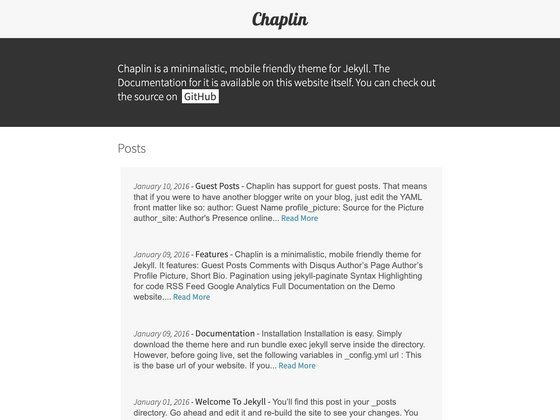
Template details
Matthew Bischoff's Jekyll Blog
A personal website and blog built with Jekyll, featuring markdown posts, categories, and social media metadata.
About this template
Matthew Bischoff's personal website is a Jekyll-powered blog template that converts markdown posts into a static site with permalinks, categories, tags, and social media sharing metadata. The template is the source for mbbischoff.com, a personal website repository described simply as "A personal website."
What is Matthew Bischoff's Jekyll Blog?
This is a static-site blog template built on Jekyll, the Ruby-based static site generator. It takes markdown files placed in the _posts folder and generates a blog with individual post pages; the filename of each markdown file determines the post's permalink unless overridden in front matter. The template includes category support, multiple post formats, and social media metadata fields, making it a self-contained personal publishing platform.
Key Features
- Markdown-based posting — Write posts as markdown files in
_posts; the title portion of the filename sets the permalink, and Jekyll builds the HTML pages. - Front matter configuration — Each post accepts
title,permalink,layout,image,description,format,categories, andtagsfields in YAML front matter;titleandlayoutare required, while the others are optional. - Multiple post formats — The
formatfield can be set topost(default),link, orshort, changing the layout type of the post. - Category system — Categories are created manually by making markdown files in the
_categoryfolder, each containingtitle,permalink, andnamefront matter; posts can then assign themselves to existing categories via thecategoriesfield. - Read More truncation — Adding an HTML comment (the Jekyll read-more marker) in a post's markdown inserts a "read more" button on the home page, truncating the preview.
- Social media sharing — Optional
imageanddescriptionfront matter fields control the image and text shown when a post is shared on social media. - Local development — Run
bundle exec jekyll serveto serve the site locally during development. - Deprecated tweet color — A legacy
colorfield (red, purple, violet, blue, cyan, green) controls tweet background color, though it is deprecated.
Who is it for?
- Personal bloggers who want a minimal, markdown-driven blog with categories and social sharing.
- Jekyll developers seeking a small codebase to extend or reuse as a personal site.
- Writers and journalists who need a straightforward way to publish posts with custom metadata for social media.
What can you do with it?
- Publish short and long-form posts — Use the
formatfield to choose between a standard post, a link post, or a short post, all from the same markdown pipeline. - Organize content by category — Create category pages and assign posts to them so readers can browse by topic.
- Control social sharing appearance — Set the
imageanddescriptionfields per post to define what appears when the post is shared on Facebook, Twitter, or other platforms. - Preview locally — Run
bundle exec jekyll serveto iterate on posts and design before deploying.
How does it work?
The workflow is: create a markdown file in _posts with the required front matter (title and layout), optionally set category and format fields, and place the file in the folder. Jekyll builds the site into static HTML, and the post becomes accessible at the permalink derived from the filename or permalink property. To add a category, create a markdown file in _category with the appropriate front matter.
FAQ
How do I create a new post?
Create a markdown file in the _posts folder. The filename determines the permalink by default, and it must include front matter with at least title and a layout set to post. You can optionally add permalink, image, description, format, categories, and tags.
What front matter fields are required?
Only title and layout are required. layout should always be set to post. All other fields — permalink, image, description, format, categories, and tags — are optional.
How do I set up a category?
Create a markdown file in the _category folder, for example animals.md, containing front matter with title, permalink, and name. Then reference that category in a post's categories field.
Can I customize the URL of a post?
Yes. Set the permalink field in the front matter to override the default permalink derived from the filename. If permalink is not provided, the filename determines the URL.
How do I add a "read more" truncation?
In the post's markdown, insert the standard Jekyll read-more marker (an HTML comment worded as "more") at the point where you want the home page preview to end. Jekyll will insert a "read more" button at that position.