
Template details
Nuxt Dashboard Template
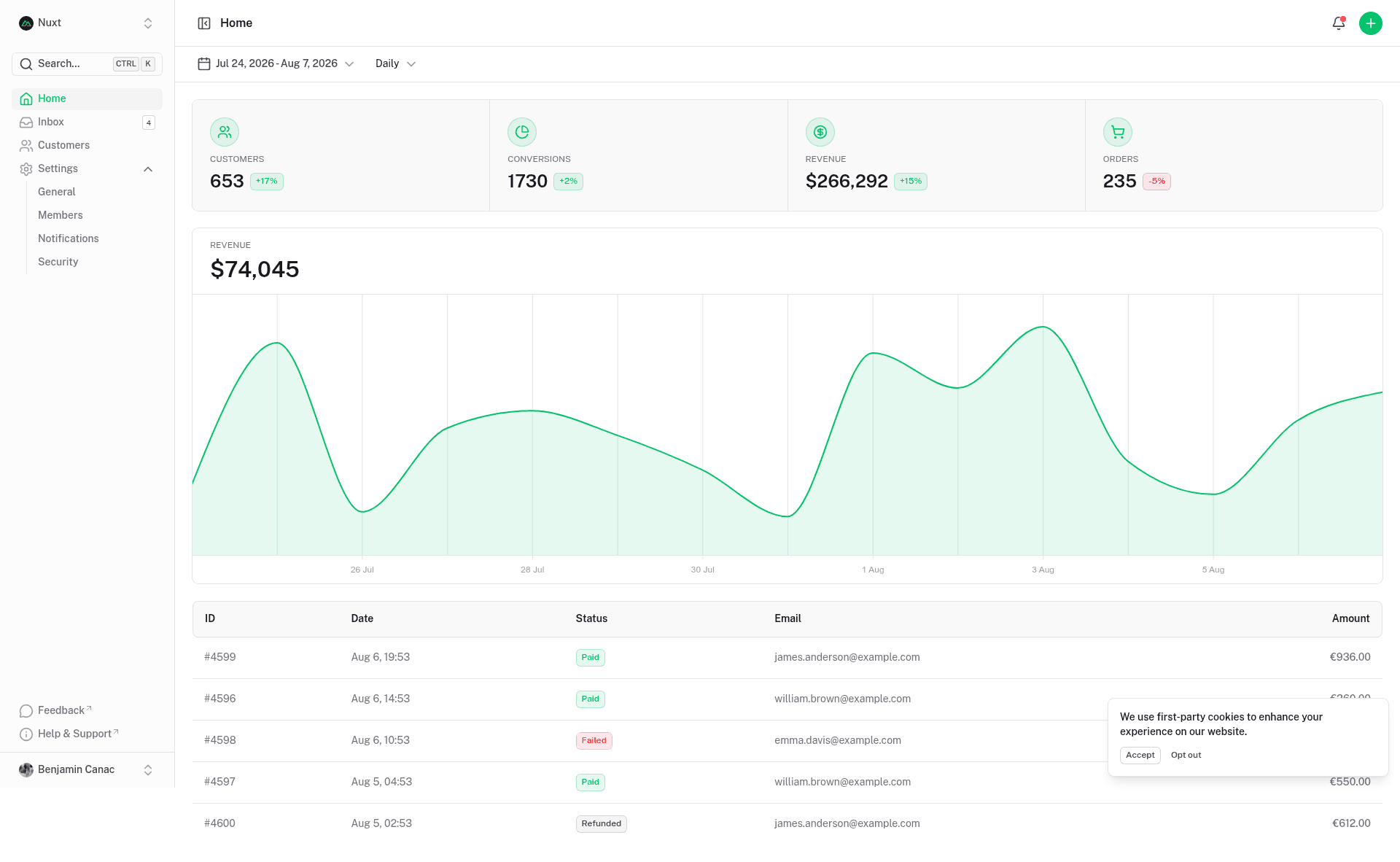
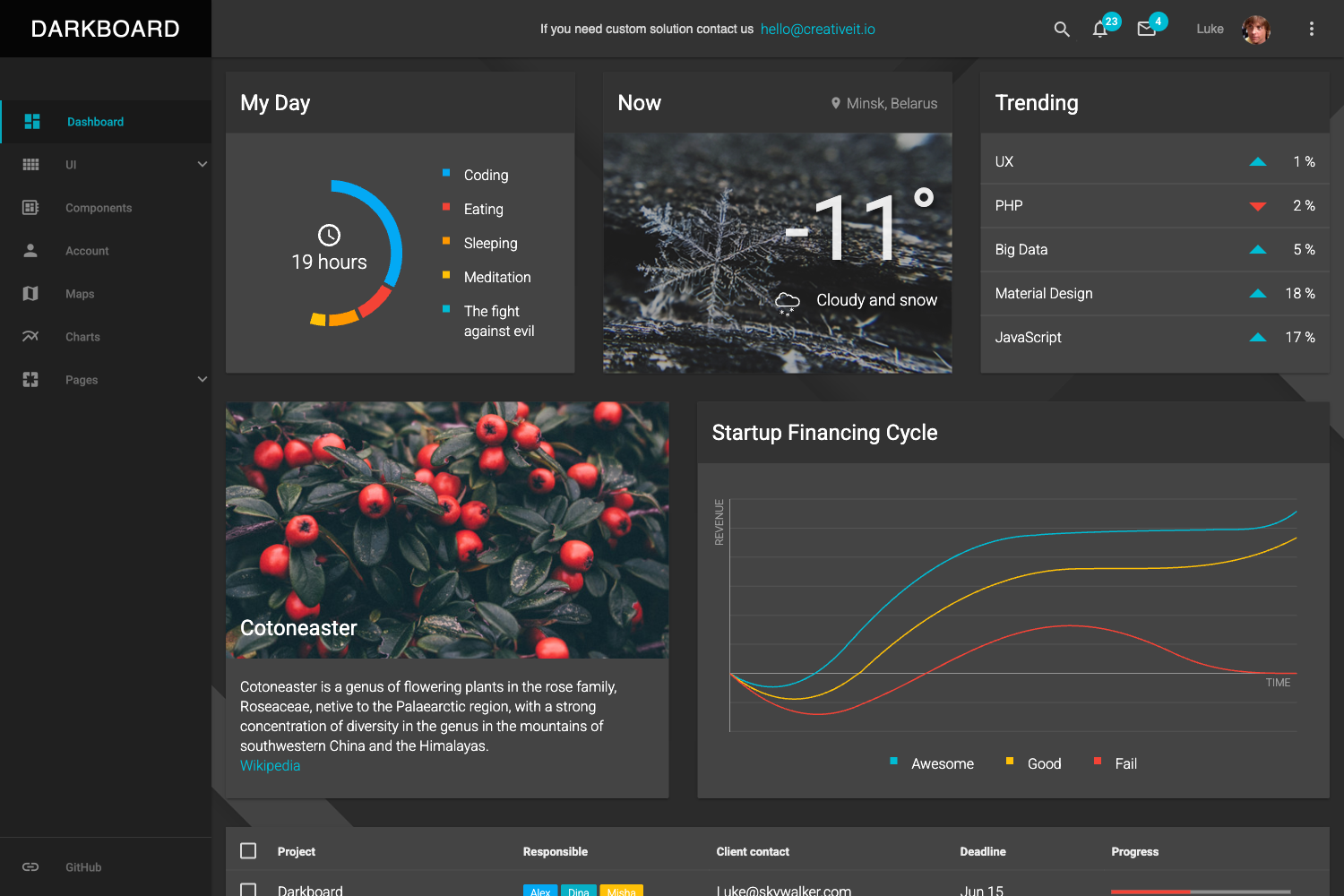
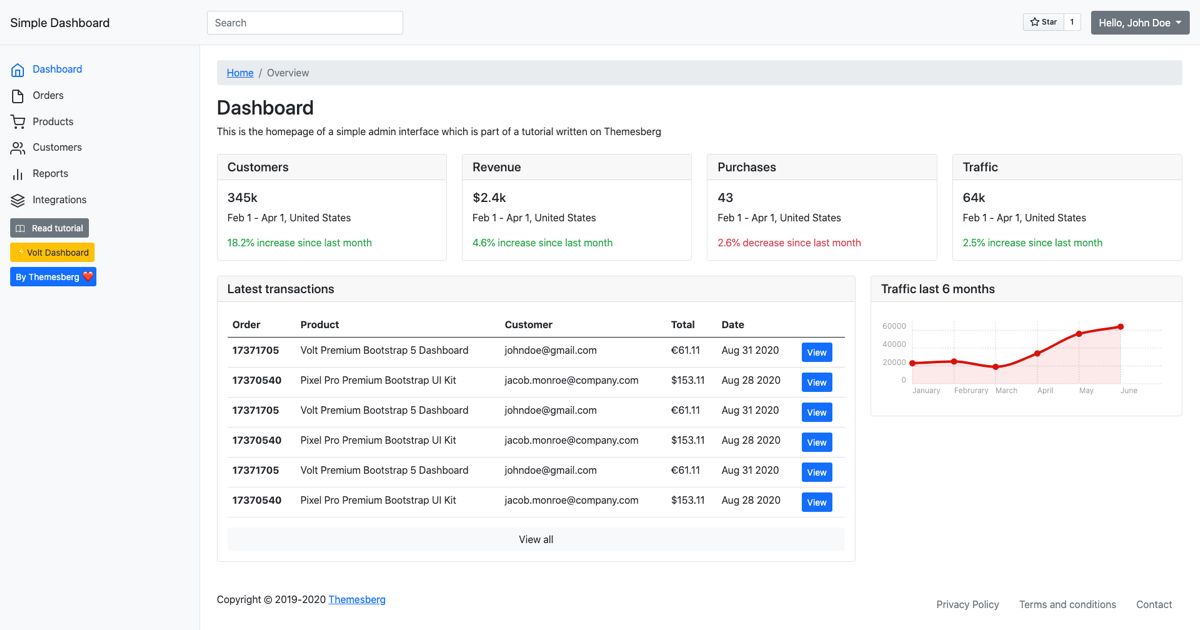
A Nuxt UI dashboard starter with multiple pages, collapsible sidebar, command palette, keyboard shortcuts, and light & dark mode.
About this template
Nuxt Dashboard Template is a Nuxt UI-powered starter template for building multi-page admin dashboards, bundling a collapsible sidebar, command palette, keyboard shortcuts, and light/dark mode into a single scaffold.
What is the Nuxt Dashboard Template?
The Nuxt Dashboard Template is a ready-to-use admin dashboard starter for Nuxt applications, built entirely with Nuxt UI components. It accepts no input—you scaffold it with the command npm create nuxt@latest -- -t ui/dashboard—and outputs a runnable Nuxt project containing a multi-page dashboard layout. It runs on Nuxt, which is built on Vue, and is maintained by the Nuxt UI templates organization (nuxt-ui-templates on GitHub).
Key Features
- Multiple pages — the template includes a multi-page dashboard structure covering the core sections you would expect in an admin interface.
- Collapsible sidebar — the main navigation sidebar collapses to give your content area more horizontal space when needed.
- Command palette — a searchable command palette lets you jump to pages and trigger actions quickly from the keyboard.
- Keyboard shortcuts — common operations can be performed with keyboard combos, speeding up daily use.
- Light & dark mode — the interface supports both themes, with the appearance controlled through Nuxt UI's theming.
- Nuxt UI components — all visible elements are built from Nuxt UI, giving consistent styling and accessible component behavior.
- One-command setup — scaffold a fresh project using
npm create nuxt@latest -- -t ui/dashboard; no manual configuration is required. - Vercel deployment — a one-click Deploy with Vercel option is provided, and the README links to the standard Nuxt deployment documentation.
Who is it for?
- Developers building admin panels need a clean, working layout with navigation and theming already solved; they can replace the starter content with their own data tables, forms, and charts.
- SaaS founders want a professional shell for a customer dashboard that includes sidebar navigation, a command palette, and theme switching out of the box.
- Nuxt developers learning the framework can study how a modern Nuxt app is organized, including the
app.vueentry, Nuxt UI configuration, and page routing structure.
What can you do with the Nuxt Dashboard Template?
- Admin panel builders: start from the multi-page dashboard and add your own resources, keeping the collapsible sidebar and command palette for navigation.
- Internal tool teams: use it to spin up an internal operations dashboard with the built-in light/dark mode and keyboard shortcuts, then wire in your own data via Nuxt's server routes or API integrations.
- Theme explorers: take advantage of Nuxt UI's theming to customize colors and components, then rebuild the dashboard in your brand style.
How does the Nuxt Dashboard Template work?
Creating a project from this template is a three-step process: run npm create nuxt@latest -- -t ui/dashboard to scaffold the files, install dependencies with pnpm install, and start the development server with pnpm dev (served at http://localhost:3000). For production, use pnpm build and then pnpm preview to check the output locally.
FAQ
How do I start a new project with this template?
Run npm create nuxt@latest -- -t ui/dashboard in your terminal. Nuxt will scaffold a project with the dashboard template included, then you can install dependencies and run the dev server.
Does the template support dark mode?
Yes. The dashboard includes both light and dark themes, and the interface switches between them—the source page explicitly lists light & dark mode as one of its features.
Can I deploy this template to Vercel?
Yes. The repository includes a one-click Deploy with Vercel button that clones the dashboard and configures deployment. You can also deploy manually using the Nuxt deployment documentation linked on the page.
Is there a Vue-only version?
Yes, the same dashboard layout is available as a Vue template at https://github.com/nuxt-ui-templates/dashboard-vue, separate from the Nuxt-powered version.
What package manager should I use?
The README's setup commands use pnpm for installing dependencies, running the dev server, building, and previewing the production build.